Beta testing open Shopping lists & budget help

Grocery Guide

A polished grocery planning experience focused on shopping lists, spending awareness, and a cleaner path from planning to checkout. Visitors can now join the beta and start testing on Android in just a few steps.

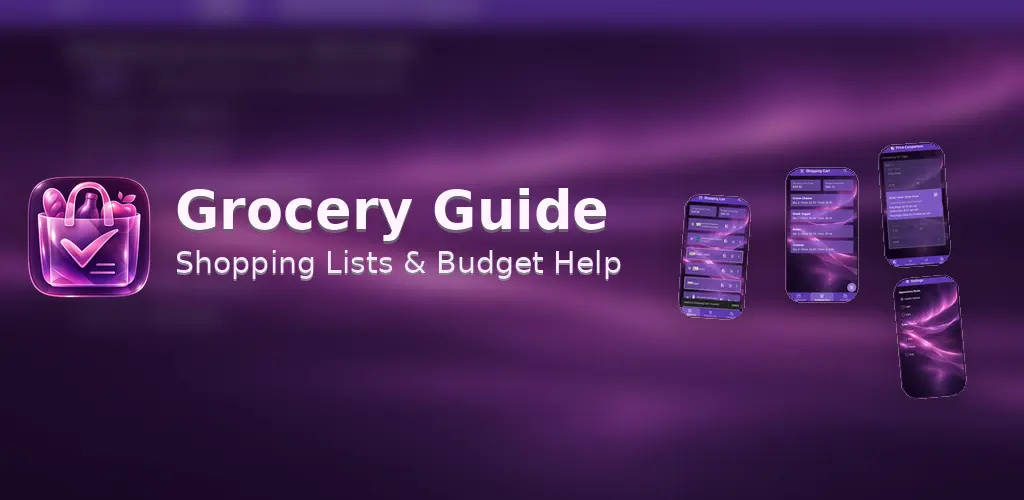
Grocery Guide promotional artwork
👥

Simple beta access

Visitors first join the Google Group, which unlocks access to the private Google Play beta and keeps the process clear.

📲

Flexible install options

After joining, testers can opt in on the web, open the Play Store listing directly, or search on their Android device.

💬

Feedback stays close

The page still keeps support and product feedback within reach so early testers can report issues or suggest improvements fast.

How beta testing works

Google Play only shows the Grocery Guide beta after a visitor joins the approved Google Group. This section walks them through the exact flow so they know what to expect.

Start with Google Group
1

Join the Grocery Guide beta testers group

Use the Google Group to register as an approved tester before trying to open the beta in Google Play.

Join Google Group
2

Opt in on the web

Once group membership is active, open the Google Play testing page and accept the invitation to become a tester.

Open testing page
3

Install on Android

After opting in, install from the Play Store listing or search the Play Store for Grocery Guide. If it does not appear, search for bti.app.groceryguide.

Share the simple tester checklist

Tell visitors to join the Google Group first, then opt in on Google Play, then install on Android. If the Play Store search does not show the app, they should search for the package name instead.

Current status

  • Beta testing is currently open for approved testers.
  • Google Group membership is required before Google Play access appears.
  • Feedback form is open for ideas and bug reports.
  • Support contact is available at [email protected].